Showing posts with label Quick Overview. Show all posts

Wednesday, June 2, 2010

Overview: The Buzz Page

The Buzz page pulls in all the new and interesting content from your groups events, news, classifieds, polls, forums, and new members. Depending on your group's set up, your Buzz page might look a bit different, but here's an example of the Buzz page of a very active group. You can see that new and featured content is highlighted here, as are new group members, and you can click on any of the content to see that information in detail.


How is the Buzz page different from the "My BigTent" page?

The Buzz page contains new or updated content for one group only, where the My BigTent page will show you new content across all your groups, and will highlight your new gifts and other personal updates as well.

Overview: Subgroups

Subgroups are smaller groups within your group that organize members around a special interest (e.g., a hobby club or playgroup) and keep the main group focused on events and discussions that are relevant to everyone. Subgroups can have their own forums, events, news, polls, and all the other features of a main group.

Because subgroups are smaller and more intimate, members often choose to share more information with subgroup members than with the top-level group.

Examples of subgroups include a board or steering committee, classrooms or grades, book clubs, or playgroups. You can see a list of your group's subgroups by going to the "subgroups" tab.


Visual Aid


How do I join a subgroup?

Some subgroups have open enrollment and other groups while others may require your membership to be approved. Go to the "subgroups" tab to see what subgroups are available. Learn more about joining a subgroup here: How do I join a subgroup?


Will I get even more email when I join a subgroup?

Subgroups can have their own forums, so be sure to set your email preferences for these forums as well to control the amount of email you receive from your groups and subgroups. Learn more here: Video & Guide: How do I control the emails I receive from my group(s) on BigTent?


Do I have to join a subgroup?

All groups are set up differently, and while most groups have some optional interest subgroups you can join, some top-level groups have little activity but have very active subgroups. Contact your group's leaders if you have questions.

Overview: TentMail

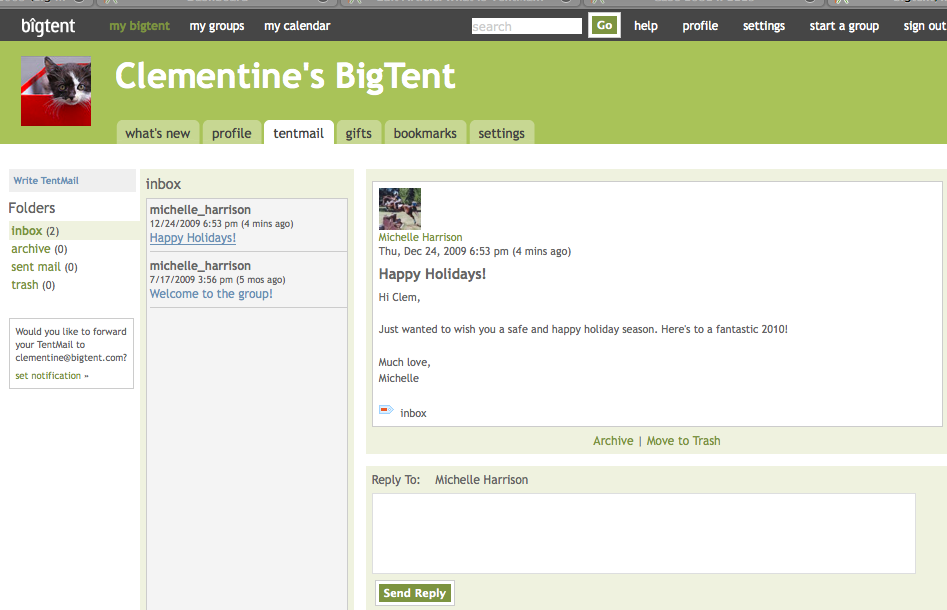
TentMail is BigTent's internal message system. TentMail allows you to send a message to other group members without having to use your email. Every BigTent user has access to TentMail and can send to and receive messages from groups members registered on BigTent. To learn how to send a TentMail message, see our FAQ here: How can I contact members or leaders of my group individually?


How will I know when I have a new TentMail?

* You will see an alert on the "my bigtent" page.
* You will see a new message in your TentMail inbox, located at my bigtent > tentmail.
* Click on a message to view its contents and to reply to or archive the message.
* You can also easily configure your settings to get emailed notifications of new TentMail. To receive copies of new Tent Mail in your email inbox, visit settings > email options > personal notifications and check the appropriate box.


Can I reply to a TentMail from my email inbox?

You will need to come online to reply to TentMail. You can click on the link in your email notification to be taken directly to the message.


Can I forward TentMail to other group members?

At this time, you cannot forward your TentMail messages to other group members.

Overview: Settings

To change your settings, including how many emails you receive, your contact information, and your group membership(s), simply go to "my bigtent" and click the "settings" link.


From the Settings page, you can:

* Change your personal information. To learn more about making these changes, see the FAQs in the "Profile" category.
* Edit the information you choose to share with your group. Click "settings," then choose "profile privacy." Use the checkboxes to decide what information group members can see for each of your groups. Learn more here: How can I control who sees my personal information?
* Suspend or resume your group membership. Simply click the "membership info" tab then click "Suspend membership" under the group in question. See this FAQ for step-by-step directions: How do I leave my group or subgroup?
* Change your email preferences. Go to the "email options" tab. Check out this article for instructions on changing your email preferences: Video & Guide: How do I control the emails I receive from my group(s) on BigTent?

Overview: Reviews

BigTent's Reviews feature is a fun way for your group to share resources and opinions about trusted products and services in your area. You can read what other group members have to say about a local restaurant or a popular book. You can voice your own opinion about a product or service or you can advertise your business to the group.

Please note that group leaders can enable or disable the entire Reviews feature. If the feature has been disabled, you won't see a "reviews" tab in your group.


Who can read Reviews?

All group members can read reviews of products and services posted to the BigTent group, provided the group's leaders have enabled the feature. To find reviews of products and services, go to my groups > [group name] > reviews. You can find a review or a product / service by searching by name or keyword and location, or browsing by category. You can also browse for categories that have had at least one review by a group member.


Who can post a Review?

All group members can post reviews in their BigTent group, however, some groups may choose to moderate posts to the Reviews area. Contact your group leader if you're having trouble posting a review.

Group members can share a review with the group to spread the word about a great product, or service, and can add listings for services like babysitters or plumbers. Members can also post listings of their own businesses to advertise to the group. Learn more about posting a review or adding a new listing here: Guide: How do I post a Review or advertise my own business with the group?


Who can edit or delete a Review or listing?

Group members can edit or delete their own reviews and listings they've posted. Group leaders can edit or delete listings posted by group members, and can edit some listings provided by Amazon or Google. Learn more here: Can I edit or delete a review? ... Can I edit or delete a product or service listing?

Tuesday, June 1, 2010

Overview: Journal

The journal is your place to share your thoughts and ideas with other group members. Try posting a weekly entry about being a new parent or write about one of your hobbies.

All interested group members can view your journal if they click on your profile page. Journal entries add some excitment to your profile page and can provide additional information about yourself so that fellow group members can get to know you better.


How do I add an image to a journal entry?

* Find the image online that you want to use, right-click on the image (hold down Ctrl while clicking on a Mac) and select "Copy Image Location." This copies the exact Web address of your photo.
* Go to my big tent > profile > journal and choose "Create an entry."
* Set the "Upload from" drop-down box to "Web link" and paste the image address in the URL field.
* Click "Post."

You can also click "Switch to Rich Text Editor" to add HTML, embed videos, and use special formatting and fonts. Please note: The Rich Text Editor is not available for Safari users.


How do I add video to an entry?

* Go to my bigtent > profile > journal and choose click "Create an entry."
* Choose "switch to Rich - Text Editor" (while in Firefox and IE only) and click the film strip icon to provide a link to the video.
* Alternatively, you can copy and paste code into the body of the journal entry to embed a video (e.g., from YouTube).
* Just like with photos, videos come in a variety of formats. The rich text editor supports Flash, Quicktime, Shockwave, Windows Media, and Real media formats. In order for your video to be embedded properly, you must choose the right file type.
* Note: All YouTube videos are Flash videos. When you're on the General tab for adding media, make sure you choose "Flash" as your file type.

Wednesday, May 26, 2010

Overview: Profiles

Profiles offer members the opportunity to share information about themselves, as well as photos, with other group members. The information you see on a member's profile page will depend on the information that member has chosen to share with the group.


How do I view someone's profile?
There are several ways to navigate to someone's profile:
OPTION 1:  Use the member list to navigate to the member’s profile page:
- Go to my groups > [group name] and click "members." If your group has enabled this feature, you'll see a list of active group members.
- Find the person you're looking for in the list. You can sort by any of the fields by clicking the heading, or search by screenname.
- Click on the member's screenname or picture to see his or her profile page.

OPTION 2:  When viewing content posted by the member (e.g., a forum topic),
click on the member’s picture or screen name to be taken directly to the member’s profile.

Note: To view your own profile, you can follow any of the instructions above, or click “profile” in the upper right corner of any BigTent page to be taken directly to your own profile.

What is on my profile page?
The profile page will contain all the information you've chosen to share with your group, including your personal information, contact information, family members, and photos. You are in complete control of what members see on your profile page.  Go to settings > profile privacy to indicate what is visible on your profile. Your profile also highlights gifts you've received, recent posts you've made, and businesses you own that you've advertised in the "Reviews" area.

How do I update the information on my profile?
The information on your profile comes from the information you've filled out on the "settings" page and the group's membership form. Click "settings" then choose from the tabs on the left to update your personal, contact, and family info. You can update custom fields by going to settings > group info and clicking "Edit group membership info."

Overview: Photos

BigTent allows groups to share photos and create photo albums for events. Members may post personal photos on their profile as well.


Who can see group photos?

All group members can see photos shared with the group. To see photos shared with your group, go to my groups > [your group] > photos. Then, click on a photo or choose to view photos in an event album. Event albums, if your group has any, will be listed on the right-hand side of the page.

To download a photo from BigTent and save it to your computer, locate the photo that you want to download and click on its thumbnail to view it. To the right of the photo, click the link "Download this image." You'll be prompted by your computer to open or save the image.


Who can post group photos?

All members can post group photos or share a personal photo with the group. Learn how to post a photo here: How do I add photos to my profile or share photos with my group?


Who can see my personal photos?

You can configure who sees your personal photos. Click on a particular photo and on the right-hand side of the page under "Share this photo" there are several checkboxes indicating where the photo is shared. Photos shared on your profile are visible to group members who navigate to your profile page. Photos shared with the group are visible on the group's photos tab. You can hide all your profile photos from your group's view by going to settings > profile privacy and de-selecting the box to share your "Photos and Flickr Photostream."

Overview: Member List

The Member List features information about members in your group, and you can click on any member's screenname to be taken to his or her profile, where you can contact the member directly using TentMail. You can also search the Member List to find a member quickly.


What personal information is on the Member List?


Group leaders can choose which information to include on the Member List. Members' screennames and profile photos will always be visible, but members can choose to share or hide any other information, like phone number or address.

To learn how to change what information you share with the rest of the group, view this helpful FAQ: How do I opt out sharing my information in the member directory?


How do I find a specific member on the Member List?

To search the member list for a specific member, type the screenname, first name, OR last name into the search bar, then click "Filter." Depending on what information members have chosen to share, you may only be able to find members by screenname or first name. For example, if a member has chosen not share his last name, you will need to search for him by first name instead.

Please note: To find contact information for your group's leaders, check the group's "about" page. Go to my groups > [group name] > about to see if your group has listed contact information for the group leaders.

Tuesday, May 25, 2010

Overview: Gifts

Gifts are fun images you can send to fellow group members to share birthday wishes, send your congratulations, or say a quick "hey." You can choose from several fun gifts in different categories, and you can add a personalized message with your virtual gift. Some gifts are free and some gifts cost $1 to send.


Sending gifts

To send a gift, go to my bigtent > gifts and choose a gift and recipient. To see step-by-step instructions for sending gifts, see this FAQ: How do I send a gift?

You can re-send a gift to a different recipient on the "sent gifts" subtab. Go to my bigtent > gifts > sent gifts to view gifts that you have sent. These are listed in delivery order, starting with the most recent gift. You'll have the option to send the same gift to a new recipient by clicking “Send this gift.” Then select a new recipient, write a new message (optional), and choose a delivery method before purchasing (for premium gifts) and sending your gift.


Public vs. Private gifts

Public" and "private" gifts vary slightly. With public gifts, gift details (sender’s name and optional message) are visible to other group members. With private gifts, gift details (sender’s name and optional message) are only visible to the recipient and the sender. Other group members will only see the image of the gift in the "My Gifts" box located on the lower left-hand side of the recipient’s profile


Receiving gifts

Gifts you receive will appear on your profile. You can also elect to receive an email notification when you receive a gift. Learn about all the ways you can be notified of a new gift here: How will I be notified when I receive a gift?


Why does BigTent charge $1 to send some gifts?

Our Gifts feature is one of several revenue streams with which we are currently experimenting. Virtual gifts also provide a great way to welcome new members to your group or to provide a cheerful online gift.

We offer several free gifts for you to send to other group members, but if you're looking for a specific gift, we offer several "premium" gift choices as well for $1. You will not be charged any additional transaction fees - you will only pay $1 per premium gift. When you purchase a premium gift, a charge from “BigTent” will appear on your credit card statement.

Monday, May 24, 2010

Overview: Forums

Most groups have one or more discussion forums where members can communicate, share advice and resources, and connect with new members. You can participate via email or online, and you can search for specific topics to take advantage of the wealth of information shared by the group.


How do I participate in discussions?

There are several ways you can participate in forum discussions, either online or via email.


Online

* Go to my groups > [group name] > forums or go to your group's "buzz" page to view recent topics.
* You can also view forum topics for your group(s) on your "my bigtent" page, where you land when you log in to BigTent. The forum topics (or titles) are links, and you can view the contents of a forum topic by clicking on the title.Titles of messages that have been read are purple, while unread messages have blue titles.
* When viewing any discussion, scroll to the bottom to enter your comment. Please note: You will not be able to edit it later.
* To start a new topic, go to the forums tab and click "Start a topic." Or you can choose "Start a Topic" from the "Quicklinks" drop-down.


Via Email

* Choose to receive every topic and comment, every topic, or a daily digest of forum messages in your email inbox.
* To configure these settings, go to settings > email options > forums and check the boxes next to the forums you'd like to receive via email. Then choose "Email every topic and comment" from the drop-down menu and click "Save."
* To post a topic to your group's discussion forum(s), send an email to your group's forum email address(es). You can find this address by going to my groups > [your group] > forums and click on "View forum email address(es)."
* To post a comment to an existing discussion topic, just hit "Reply" to the topic in your email inbox, enter your message, and hit "Send." The topic will appear in your forum (or be sent to the author, depending on your group's forum configuration).


Can I search the forums?

You can search the forums for posts by particular members, during specified date ranges, or with certain keywords.


To search the forums:

* Choose a forum from the drop-down menu to narrow results by a particular forum.
* Type your search terms or tags in the "Keywords" search box.
* Filter by message type ("Topics only" or "Topics and comments").
* Enter a member's name or screenname to search by author.
* Specify a date range, if desired.
* Click "Search."

Make sure to clear your search when you're done by clicking "reset."


Can I be notified of new forum discussions via email?

You have several different options for how you can be updated about new forum discussions and comments. To change your settings, go to settings > email options > forums and check the box next to the forum you wish to change. Then choose one of the following options from the drop-down menu and save your changes. The options are:

* "Email every message and comment" - Get one email per forum topic or comment posted.
* "Email every topic (comments Web-only)" - Get one email per topic. You'll have to go online to see comments.
* "Email daily message digest (topics and comments) - Get one per 25 topics and/or comments posted. If your group has fewer than 25 posts in one day, you'll get a digest at the end of the day with all the topics and comments posted that day.
* "Email daily message digest (topics only) - Get one email per 25 topics. Comments are excluded. This option is ideal for members of groups that have a high volume of messages and who only want a few emails a day. If your group has fewer than 25 topics in one day, you'll get a digest at the end of the day.
* "Include in Blink" - The Blink is a weekly newsletter summarizing updates in your group. Go to settings > email options > BigTent Blink to elect to receive a Blink.
* "Web-Only" - No emails. Choose this if you'd rather read all of your forum messages online.
* "None, hidden" - No emails. Choosing this option will hide the entire forum from your view online.

Overview: Events

BigTent's Events feature lets the group post event details, such as location, map, contact info, and event description, online and allows members to RSVP, pay, indicate potluck items they plan to bring, and even sign up for volunteer shifts for the event.


Who can post events?

Only group leaders and members with permission to post events are able to set up events and event payments on BigTent. If you have an event you think should be posted on our calendar, please send that information to president@micahcooperative.org.


Who can view or RSVP to events?

Any member can view events or RSVP to an event (only if RSVP is required - some events do not require RSVP). If the event has been shared with the group's public website, anyone can view the event title and description, but will not be able to see event's location, contact information, or the guest list. Learn more about RSVPing to events here.

To see a list of your group's events, go to my groups > [group name] > events. Please note that events more than 30 days away will not appear on this page. To find an event further in the future, go to "my calendar," check the box for your group to display its calendar, and find the event.

Overview: Files

Groups can store files, such as documents, PDFs, spreadsheets, audio files, and even videos, in the Files section. There is no limit to the number of files a group can store, although the size limit per file is 20MB. Files can be emailed out to the whole group through either the Forums or News.


How do I download a file?

* Go to my groups > [group name] > files to see a list of downloadable files.
* Search for the file, or click a tag in the left column to narrow the results.
* Click "download" to download the file of your choice.


The file will automatically be downloaded to your desktop, or your computer might ask what you would like to do with the file.

If you belong to multiple groups, you can see all your groups' files by going to the "my groups" menu and selecting "View all." Then choose the "files" tab. Here you'll see all files posted by any of your groups on BigTent. Each file is color-coded according to its group to help you easily identify to which group each file belongs.


Can I search for a file?

To search for a file, go to the Files area and enter your search terms on the left hand side of the page. Click "Search." Be sure to click "Reset" when you are finished searching to reveal all files again.

You can also click on a category tag to see files that match that description. Learn more about sorting files here: How do I sort files?


To add a file:

* Go to my groups > [group name] > files and click "Add a file."
* Complete the required information and select your file from your computer.
* Choose with whom to share the file.
* Click "Upload.


To send a file:

* Add your file per the instructions above.
* Right-click "Download" next to the file name.
* Select "Copy Shortcut" or "Copy Link Location." (Exact text will depend on the Web browser you use.)
* Go to your group's forum and start a topic, or create a news announcement.
* Right click in the message area and choose "Paste" to paste your file's link location.


The Nitty Gritty

File Tags

Add Tags to keep your files organized. For example, you could use the tag "Meeting Minutes" to store your group's minutes. Then, any files with this tag will be accessible by members who click on that category tag on the left side of the Files page. Learn more about tags here: What are tags and where can I use them on BigTent?


Sending Files

When you post your forum topic or send a news blast, it will go out via email to your members (depending on their forum notification settings) and the link will appear in the topic. When the member clicks the link, the file will be available for download without the need to navigate back to BigTent.

Saturday, May 22, 2010

Overview: Group News

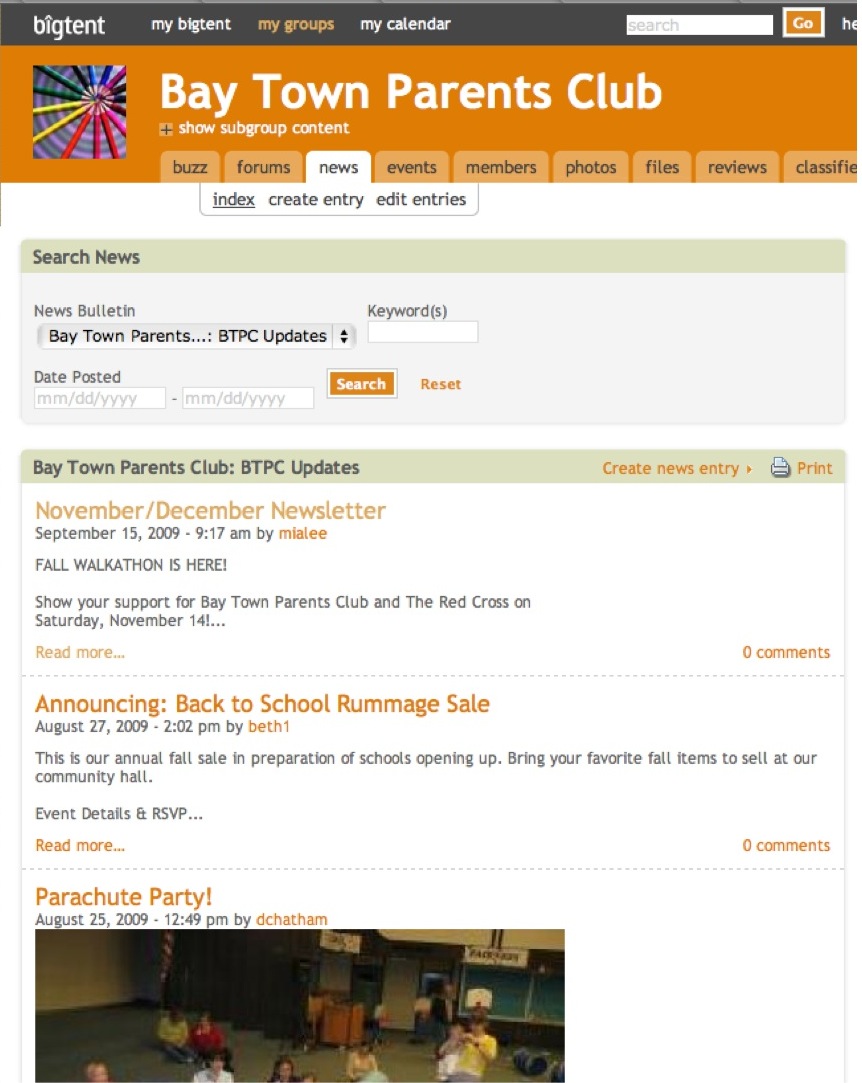
BigTent's Group News feature is an easy way to get messages out to group members, share the group newsletter online, or post important information to the group. News entries can be stored online and displayed on the group's News and Buzz pages. They can be emailed out to all group members and even shared on your group's public website.

Note: Only group leaders and members with special posting permissions can post News.


Who can view Group News?

All members can view Group News. To view your group's News posts, go to my groups > [your group] > news. You also might see News entries in the following places:

* "Buzz" page - This page will show recent News entries. If your group has no recent news, you won't see anything here. Click "View All" to see more news entries. Group leaders can also feature News posts front and center on the Buzz page.
* "My BigTent" page - If your group has news, you'll see these announcements under "Recent News."
* In your email inbox - If the creator of the news item or a group administrator chooses to do so, a News entry may be emailed to each member of the group.

Tip: If the news entry was composed in Rich Text format, your emailed version may not display correctly. Just sign in to BigTent to view the entry online.

* Your group's public website - Group leaders can share new entries on the group's public site to publicize information to non-members and the rest of the Web.


Who can comment on Group News?

Some groups have enabled comments for News posts. Leaders can configure this option by going to manage > news. If comments are enabled, all group members can comment on entries. Simply click on the title of the news entry, and enter your thoughts into the "Add a Comment" box. Then click "Post Comment."

Friday, May 21, 2010

Overview: My Calendar

The My Calendar page lets you view events for one or all of your groups, as well as your personal events, in one integrated calendar view. You can export the calendar for use in another application, or print the calendar to track your group and personal events offline. Check or uncheck the box next to any group to view or hide that group's events on your calendar.


How do I view my calendar?

  • Option 1. Click the "my calendar" link located at the top of the page. Check the box(es) of the calendar(s) you wish to view. To view only your personal calendar, check only the "Personal" calendar box.
  • Option 2. Go to my groups > [group name] > events > "view my calendar."

How do I export the calendar?

We now offer a beta feature which allows you to download events from your BigTent calendar to a .ics file. You can then import this file into your preferred desktop or Web-based calendar application. Examples include Outlook calendar (for Microsoft users), iCal (for Mac users), or Google Calendar. This feature will allow you to download events 6 months prior to, and one year from, today.

To download your BigTent events for import:

  • Click "my calendar" and click the "ICAL" icon.


  • This will begin the file download. Depending on your Web browser's settings, you may see a pop-up window asking you to open or save the file. If your browser suggests you open the file with your preferred calendar program (i.e., Outlook or iCal), click "OK."

- Your Web browser may not know which program to use with this file type. If there is no suggested application, save the file to your desktop. Make sure the file is saved as a .ics file (if it is not, you can change the name and add the extension .ics). Then open iCal, Google Calendar, or Outlook and import the file.

Since this feature is still in beta, if you encounter any trouble with the download of your calendar events, please let us know - simply submit a case to our customer support team through our Help area.

Can I print the calendar?

On the "my calendar" page, click "Print View," located in the upper left-hand box, to display a printable version of your calendar.
 
Design and Layout by Wandaring June Designs. Blogger Theme by BloggerThemes Sponsored by Busy Buzz Blogging